

How To Setup Google Tag Manager
If you’re a small business owner setting up your own website tracking, Google Tag Manager is one of the most important tools you can learn early.
Google Tag Manager allows you to add and manage tracking tools like Google Analytics, Google Ads conversion tracking, Facebook/Meta Pixel, and more — without constantly editing your website’s code or relying on a developer.
In this guide (and the video above), I’ll walk you through exactly how to create your Google Tag Manager account from scratch, step by step. This is designed for beginners and non-technical users, so you don’t need any prior experience with coding or analytics tools.
By the end of this setup, you’ll have:
A Google Tag Manager account created correctly
A container ready for your website
The GTM code installed so you can start tracking actions like form submissions, button clicks, and bookings
Below, I’ll break the process down into simple steps with screenshots, so you can follow along at your own pace and make sure everything is set up properly the first time.
Step by Step instructions
To sign up for Google Tag Manager (which is Free), you'll need to log in to your Google Account
Go to Google Tag Manager - https://www.google.com/analytics/tag-manager/
It will automatically log you in. You will want to then Create Account by clickcin on Create Account

Fill in the following information
Account Name - the name you use to identify this account
Country - Country origin (Australia)
Container name - Insert the URL of your website
Target platform - I choose Web here for website.Once finished click "Create".
You'll see a Google Tag Manager Terms of Service pop-up. Select the checkbox and click "Yes"
The code for installing the Google Tag Manager on to your website will appear.
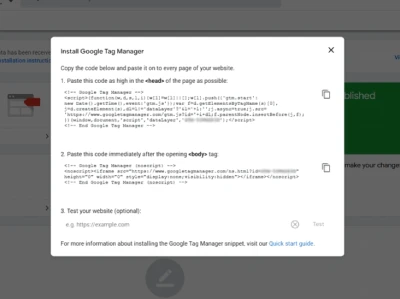
Next we will add this code to the website.
For Action Digital Clients go to app.actiondigital.com.au otherwise go to your own website and look for similar settings.Once in your account you'll go to Sites > Websites > and click on the website you want to add the code.

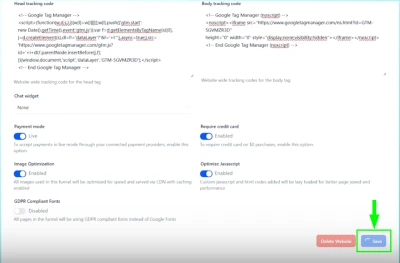
Go to the websites Settings

Add the Google Tag Manager Code to the website.
You will go back to Google Tag Manager - see step 7 - copy the the Head code and then paste that in the "Head tracking code" section and then repeat for the Body code which will go in the "Body tracking code" section.
Once the code has been added, scroll down and click on Save
Next I like to open a web page and Save it and then Publish it.
I do this to help ensure the code is updated on the Home Page so when I test the code it is on the actual Page.To test the code is working on the page, return to Google Tag Manager, enter your website URL and click the Test button.
You want to see a green tick appear to the left of the URL you added.
Next we will create a Google Analytics Account and add it to Google Tag Manager.


